

Windows:
- Visit the Zoom Download Center and download the "Zoom Client for Meetings" file.
You will be prompted to download & run the Zoom file named "ZoomInstaller.exe". Follow the prompts. - Once the file has downloaded, Open the downloaded file to proceed.
- You may be asked if you trust Zoom to make changes to your system. Click "Yes" and continue.
- The main Zoom window will appear. you do not need to log into Zoom to join the meeting.
- Click the link from your email to join your Zoom meeting.
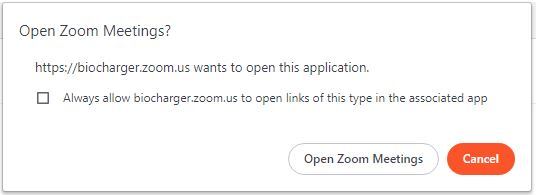
- You may see a box like the one below. Check the box to Always allow and then click open in Zoom meetings.
- Once the host has arrived you will be entered into your meeting.
- Make sure to click the box that says to Join with Computer Audio.
- You may turn on your camera as well by clicking on the camera button at the bottom of the Zoom window.
Mac:
- Visit our Download Center.
- Under Zoom Client for Meetings, click Download.
- Double click the downloaded file. It is typically saved to your Downloads folder.
- Click Continue.
- Click Install.
- Enter your password if requested.
- Click Close (You can choose Move to Trash for the Zoom installer message. You do not need the file to run Zoom.)
- The main Zoom window will appear. You do not need to log into Zoom for attending meetings.
- Click the link from your email to join your zoom meeting.
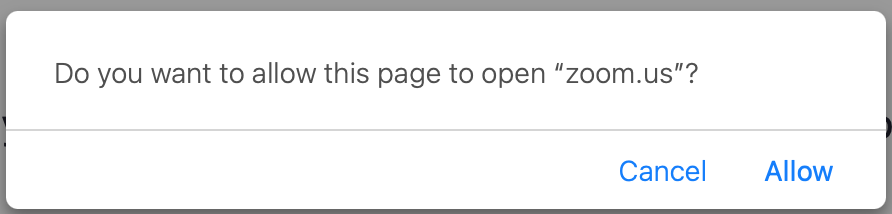
- You may see a box like the one below. Click allow to open the page in Zoom.
- Once the host has arrived you will be entered into your meeting.
- Make sure to click the box that says to Join with Computer Audio.
- You may turn on your camera as well by clicking on the camera button at the bottom of the Zoom window.
iPhone/iPad:
- Click this link to open the Appstore: https://apps.apple.com/us/app/zoom-cloud-meetings/id546505307
- Install the Zoom app on your phone.
- Click the link from your email to join your zoom meeting.
- Enter/Verify your name and click continue.
- Click Allow/OK for access to your mic and camera.
- Wait for the host to start the call.
- Make sure you join the audio. The easiest way is choosing wifi or cellular data.
- Tap on the screen and choose start video to turn your camera on.
Android:
- Click this link to open the Playstore: https://play.google.com/store/apps/details?id=us.zoom.videomeetings&hl=en_US&gl=US
- Click Install in the middle of the screen.
- Install zoom on your phone or tablet.
- Click the link from your email to join your zoom meeting.
- Click on zoom, check the Use as default app and click ok.
- Enter your name and click OK.
- Click either wifi or cellular data or choose to dial into the call separately.
- Click allow for recording if it appears.
- Click start video if you desire. (You will have to allow Zoom to access your camera)